
Submitting Expenses
How to log a reimbursable expense, track its approval status, and understand what shows up in your monthly summary.
If you incur costs during your placement that your employer reimburses — mileage, supplies, travel, or similar — you can submit them as expenses in Hire2Hero. Each expense moves through an approval process before it is marked reimbursable.
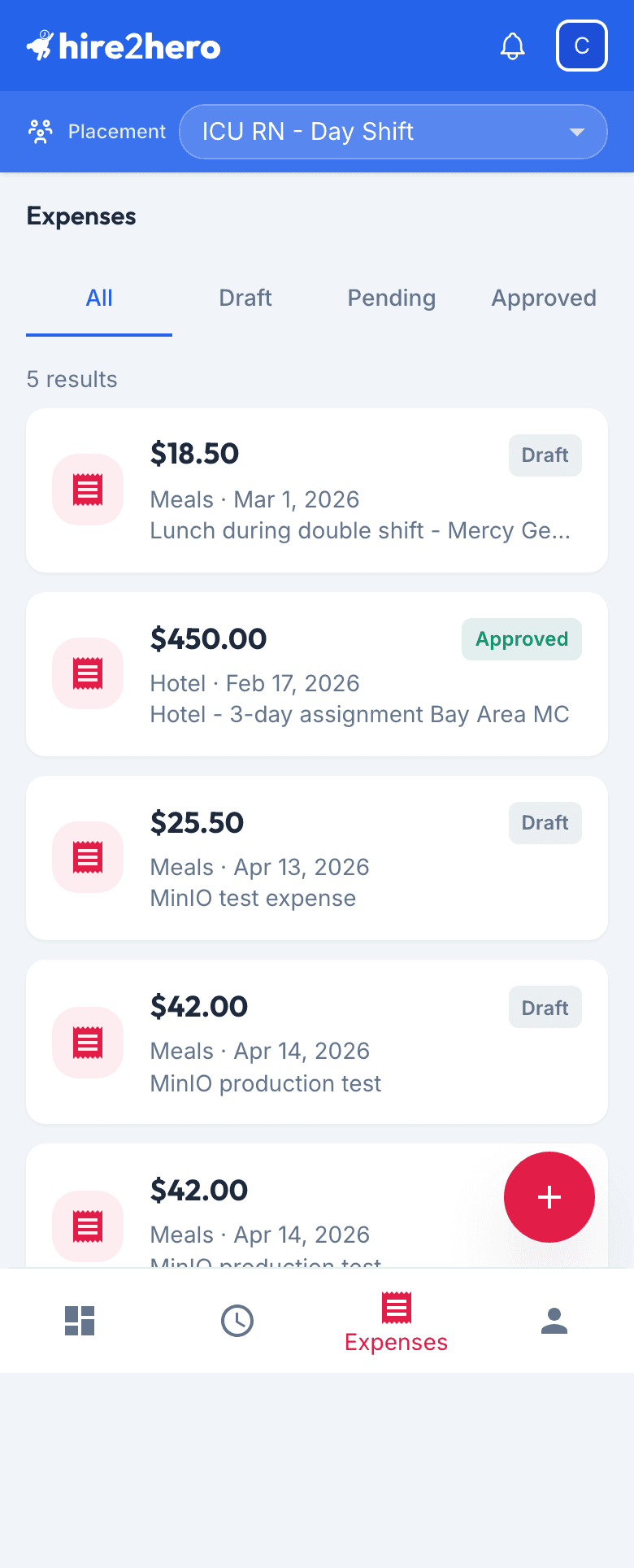
Open the Expenses page
Tap Expenses in the bottom navigation bar. At the top of the page you'll see a Summary Card showing your totals for the current month:
| Metric | What it shows |
|---|---|
| Submitted | The total dollar amount of all expenses you've submitted this month, regardless of status. |
| Reimbursable | The amount that has been approved and is confirmed for reimbursement. |
Add a new expense
Tap the + button in the bottom-right corner of the screen. The expense entry form opens.
Enter the Amount in dollars.
Select a Category that best describes the expense (for example, Mileage, Meals, or Supplies).
Set the Date the expense was incurred.
Add a Description to explain the purpose of the expense. While optional, a clear description helps your approver review and approve quickly.
Tap Save to save the expense as a draft, or Submit to send it for approval immediately.
Save as a draft if you need to attach a receipt or gather more details later. Drafts are visible only to you until you submit.
Edit or delete a draft
Expenses in Draft state can still be changed. Tap the expense card to open the entry form, make your edits, then tap Save. To remove it, open the form and tap Delete.
Once an expense is submitted, it is locked for editing.
Track approval status
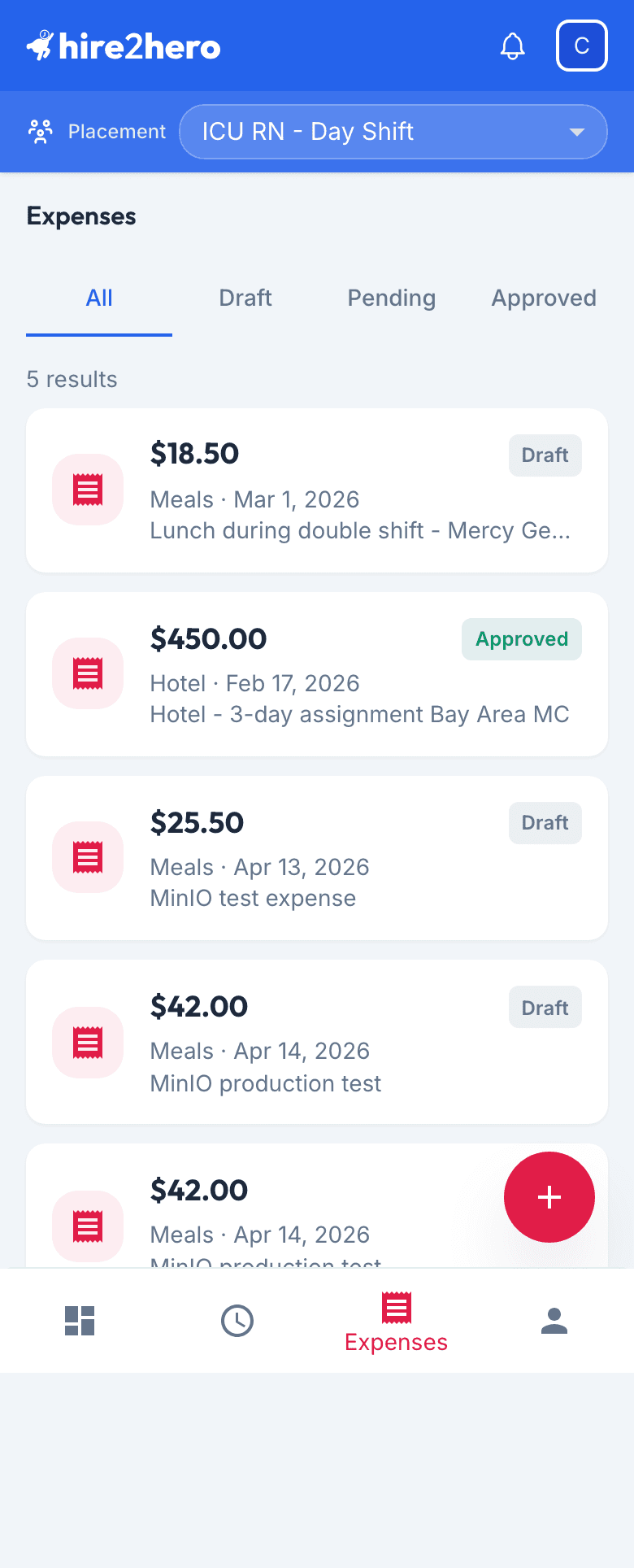
Use the status filter tabs (All, Draft, Pending, Approved, Rejected) to narrow the list.
| Status | What it means |
|---|---|
| Draft | Saved but not yet submitted. Editable. |
| Pending | Submitted and awaiting admin or approver review. Locked. |
| Approved | Accepted and confirmed for reimbursement. |
| Rejected | Returned for correction — see the rejection note on the card. |
If an expense is rejected
When an approver rejects an expense, you'll receive a notification. The expense card will show a Rejected badge.
Tap the rejected expense card to open it. Read the rejection note to understand what needs to change.
Update the amount, category, date, or description as needed.
Tap Submit to resubmit the corrected expense.
If your placement has multiple approvers, any one of them can reject the expense — the rejection note will identify who reviewed it and why.