
Viewing Placements
Where to find your active placements, how the placement selector works when you have more than one, and how clock-in controls and location checks tie to the selected placement.
A placement is the record that connects you to a specific client engagement. Every timecard and expense you submit is tied to a placement. Most candidates have one active placement at a time, but if you work across multiple clients or roles, you may have several.
See your placements
Open your profile: the person icon (Me) in the bottom navigation bar on mobile, or the top bar on desktop. The Active Placements card lists each of your current placements by name.
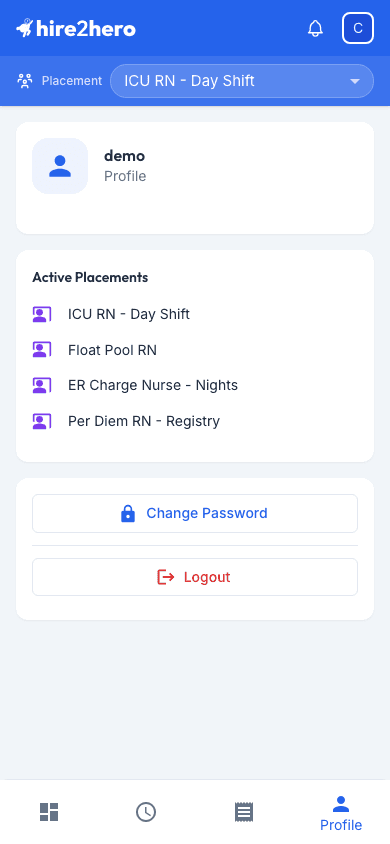
Only active placements appear here — the card is hidden entirely if you have none. If you expect to see a placement but it isn't listed, contact your administrator; it may still be pending activation, or its start date may not have arrived yet.
Switch between placements
If you have more than one active placement, a Select Placement dropdown appears — in the top app bar on desktop, and just below it on mobile. When you first sign in, your first placement is selected automatically.
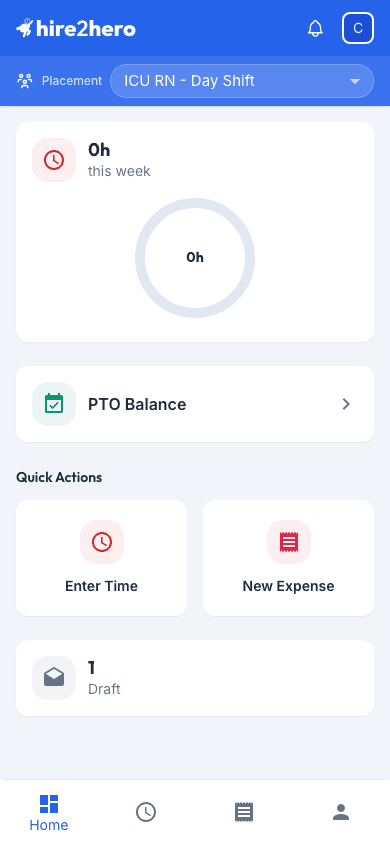
Everything in the portal follows the selection:
- Home shows the hours summary and timecard status for the selected placement.
- Time Cards opens the selected placement's timecard for the week.
- Expenses are submitted against the selected placement, using its expense categories.
Switch placements before logging hours or expenses to make sure they're recorded against the right engagement.
If you only have one placement, the selector is hidden and that placement is always active.
Clock In / Clock Out (if enabled)
Placements set up with the Clock In / Out time card type show clock controls in the portal — next to the placement selector, and in a widget on the Home screen:
Pick the block Type for the shift (for example, Regular), then tap Clock In.
While clocked in, the portal shows Clocked in at: with your start time.
Tap Clock Out at the end of your shift. You're taken straight to the timecard so you can review the entry that was recorded.
See Submitting Timecards — Clock In / Clock Out for the full time-tracking walkthrough.
Location checks
Some placements are configured to capture your device's location:
- If your placement tracks location, the app requests location access when you clock in and out, and the coordinates are stored with the punch.
- If your placement restricts to a location, a location is required — clocking in or out is rejected if no location can be read, or if you are outside the radius your administrator configured around the work site.
If clock-in fails with a location error, first check that the Hire2Hero site has permission to use your device's location. If you're on site and still blocked, contact your administrator — the allowed radius may be configured too tightly.
What you can't change
The candidate portal shows your placements by name only. Placement details — rates, dates, approvers, block types, schedules, and location rules — are set and maintained by your administrator. If something looks wrong (for example, hours landing under the wrong placement, or a placement that should be active but isn't), reach out to your admin rather than trying to fix it yourself.