
Managing Placements
How to view, create, and edit placements — the records that connect a candidate to a client engagement and drive timecards, invoicing, and payroll.
A placement is the core record in Hire2Hero. It links one candidate to one client engagement and carries the dates, rates, billing contacts, and approval settings that every downstream timecard, invoice, and payroll run inherits.
Placement create and edit require the Write Placement role. Without it, the form opens read-only and the Mark as No Show button is hidden.
Browse placements
Navigate to Workforce → Placement in the sidebar. By default the list filters to active placements only. Use the Active Placements toggle in the toolbar to see all placements including ended ones.
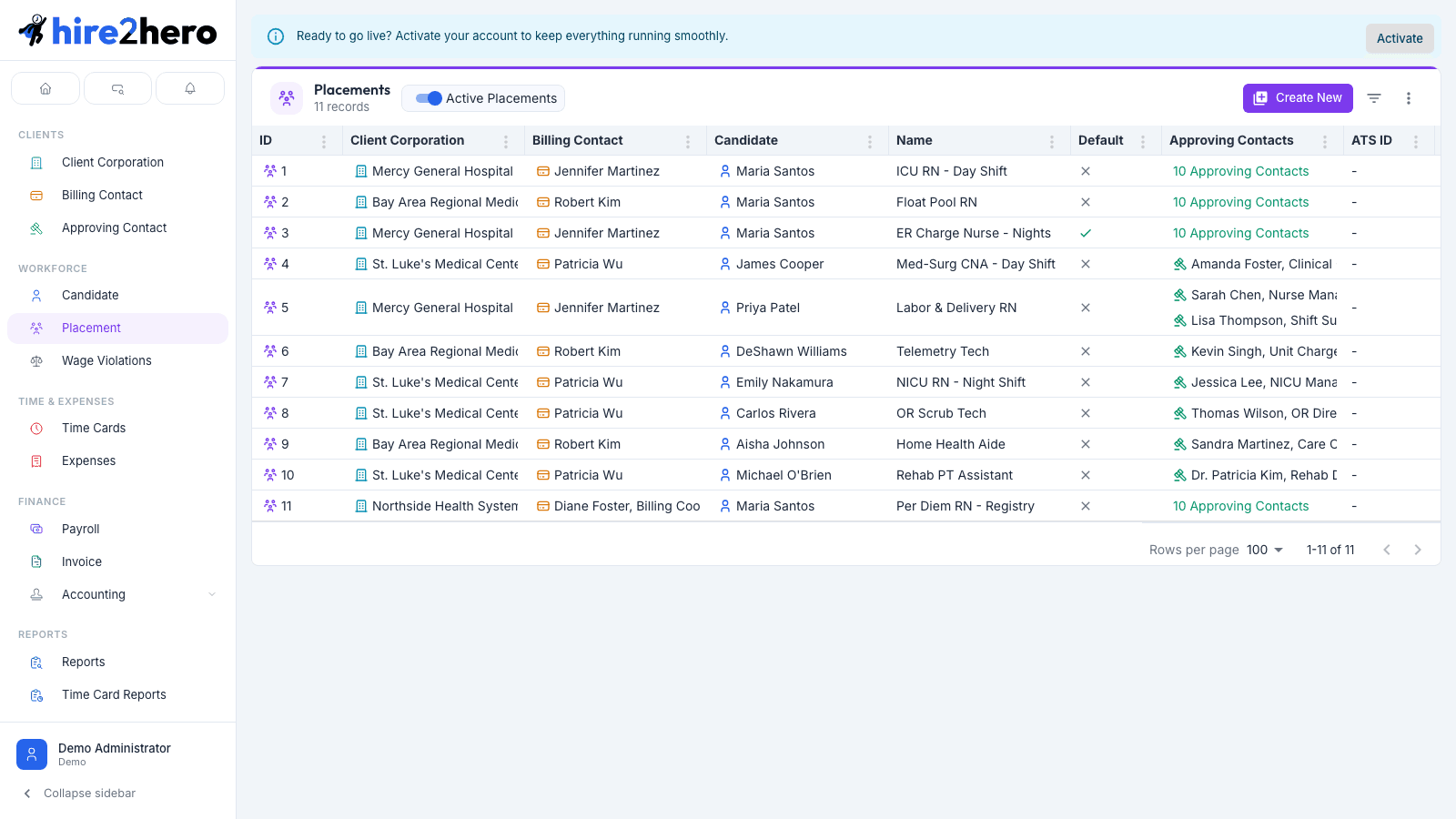
Key columns at a glance:
| Column | What it shows |
|---|---|
| Candidate | The person placed |
| Title | Role or position name |
| Client Corporation | Which client the work is for |
| Billing Client Contact | The contact responsible for invoicing |
| Currently Clocked In | Whether the candidate is actively on the clock |
| Status | Active, Pending, or ended |
Pending placements
Placements created via an ATS sync arrive in Pending state and appear on the dashboard under the Pending Placements KPI tile. A pending placement is not active — timecards cannot be submitted against it until you review and save it.
Click the placement row (or the Pending Placements tile on the dashboard) to open the detail panel.
Review all pre-filled fields from the ATS. Pay close attention to:
- Billing client contacts — confirm the right contact is assigned before the first invoice is generated.
- Rates — verify the pay and bill rates match the agreed terms.
- Start date — ensure it aligns with the actual start of work.
Make any corrections, then click Review and Save. The save button uses this label (instead of the usual Save) whenever the placement is still pending — it's your cue that the placement isn't active yet. After clicking, the placement moves to Active and timecards can be submitted against it.
Don't skip the review step. Once a timecard is submitted against a placement, changing rates on that placement triggers a warning dialog that requires acknowledgement and may cascade through downstream calculations.
Create a placement manually
Creating a placement is a two-step process. You first generate a placement skeleton from a candidate + billing contact pair, then fill in the full form.
Click + New in the Placements toolbar. A small dialog opens.
Select a Candidate and a Billing Client Contact, then click Generate. Hire2Hero creates the placement record with sensible defaults inherited from the candidate and client, and loads the full form.
In the Basic Information section, enter a Title (the role or position name). Set the Effective Date (when the rates take effect), Start Date, and optionally an End Date for fixed-term placements. The candidate field is locked at this point — it can't be changed after generation.
In the Billing & Approval section, confirm the billing contact (or add more — see Billing client contacts below). Pick an Approval Strategy and optionally assign Approvers (approving client contacts who sign off on timecards).
In the Time Tracking section, configure the Pay Cycle, Bill Cycle, Time Card Type, and Time Card Block Type Group. These drive how timecards are structured for this placement — the block type group determines which block types (Regular, OT, DT, Holiday, etc.) candidates can clock into.
In the Rates section, fill in at least one row in each of Pay Rates and Bill Rates — see Rates below for the grid structure.
Click Save. The placement is immediately active.
Approval strategies
| Strategy | Behavior |
|---|---|
| First to approve | Any single approver's sign-off finalizes the approval. |
| All must approve | Every approver must approve; order doesn't matter. |
| All approve in order | Approvers sign off sequentially; each one unlocks the next. |
Billing client contacts
Placements support multiple billing client contacts with effective dates. Each row in the billing contacts grid has a contact and an optional effective date. Add a second row with a future effective date to schedule a billing contact change — Hire2Hero routes invoices to whichever contact is effective on the invoice date.
Rates
Rates are configured in two grids — Pay Rates (what the candidate earns) and Bill Rates (what the client is charged). Each grid row has columns:
| Column | Required | Notes |
|---|---|---|
| Normal | Yes | Regular-hours rate |
| OT | No | Overtime rate |
| DT | No | Doubletime rate |
| Effective Date | No | When this rate row takes effect |
Add a second row with a future effective date to schedule a raise or rate correction. Hire2Hero uses whichever row is effective on the date a timecard covers.
Location restriction
In Additional Settings, toggle Restrict to Location to require candidates to clock in from a specific geofence. When enabled, an inline map panel appears with:
- a Google Places search box for the address,
- a map with a red circle overlay showing the geofence,
- a Radius field (in feet, default
100).
Set the center by searching for an address or clicking the map, then adjust the radius. Candidates whose device location falls outside the circle at clock-in will be blocked.
Edit a placement
Click any row in the placements list to open the detail panel. All fields are editable for users with the Write Placement role.
Rate changes can trigger a warning. If you change a pay or bill rate on an existing placement — especially one that already has timecards — Hire2Hero may return warnings on save. A dialog opens with two choices: Acknowledge (save anyway) or Undo Changes (revert the pending edits without saving).
Form sections reference
| Section | Fields | Notes |
|---|---|---|
| Basic Information | Candidate, Title, Effective Date, Start Date, End Date | Candidate is read-only after creation |
| Billing & Approval | Billing Client Contacts (with effective dates), Approval Strategy, Approvers | Multiple billing contacts supported with different effective dates for billing contact changes |
| Time Tracking | Pay Cycle, Bill Cycle, Time Card Type, Time Card Block Type Group | All required; block type group is filtered to exclude PTO-only groups |
| Time Rounding | Rounding interval (None, 5, 6, 10, 15 min) and direction (Up, Down, Nearest) | Optional; overrides the client-level rounding for this placement |
| Rates | Pay Rates and Bill Rates grids (Normal / OT / DT, each row dated) | Multiple effective-dated rows supported |
| Additional Settings | Schedule, Restrict to Location, ATS ID, VMS ID | Location restriction opens an inline map + radius picker |
Mark as No Show
If a candidate never showed up for work, you can flag the placement with Mark as No Show. This button appears in the form toolbar for active placements that have not already been marked.
Save any pending changes before clicking Mark as No Show — the button is disabled if the form has unsaved edits. This action cannot be undone from the UI.
Setting a default placement
You can designate one placement as the default using the action menu on any placement form. The default placement is used as the primary reference placement and its settings are copied as a starting point when creating new placements. A star icon appears next to the current default in the placements list.
See Setting default entities for full details on how defaults work across all entity types.
Related guides
Dashboard Overview
Tour of the administrator dashboard — the summary cards, the work queues behind them, the gross profit card, and how to switch between tab and stacked views.
Managing Candidates
How to view, create, and edit candidates — the workers whose timecards, expenses, and placements you manage in Hire2Hero.