
Managing Candidates
How to view, create, and edit candidates — the workers whose timecards, expenses, and placements you manage in Hire2Hero.
Candidates are the workers in your workforce. Each candidate has an account in Hire2Hero, a profile with employment details, and one or more placements that tie them to client engagements.
Candidate create and edit require the Write Candidate role. Without it, the form opens read-only.
Browse candidates
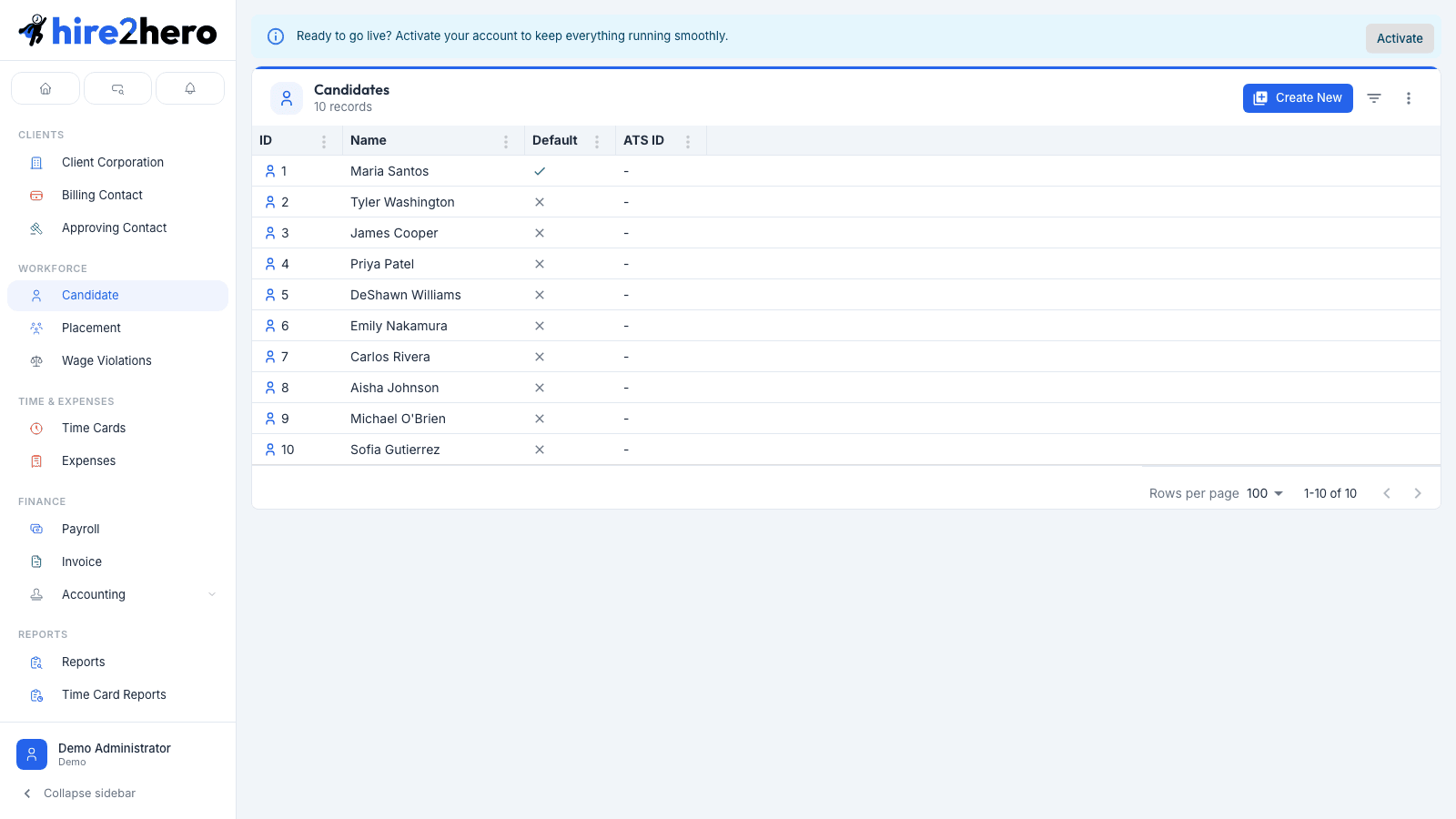
Navigate to Workforce → Candidate in the sidebar to see the full roster. The list supports text filtering by name and by ATS ID from the toolbar.
Create a candidate
Click + New in the Candidates toolbar.
In the Basic Information section, enter the candidate's Name (a single field) and Email. Both are required — the email is their login. Optionally set a Password; leave it blank to create the account without one for now.
Optionally set the Hire Date and Adjusted Seniority Date in the Employment Dates section. Both are optional. The adjusted seniority date is used when a candidate's seniority should be calculated from a date other than their hire date — for example, after a rehire, or to preserve tenure across an internal transfer.
If your organization tracks PTO, configure the PTO Settings section — assign a PTO Group, then for each PTO type in that group set the opening Balance (required) and optionally an Accrual Cap Override.
Optionally fill in ATS ID and VMS ID under External IDs if you're adding a candidate that already exists in your ATS or VMS.
Click Save.
Email addresses must be unique across all Hire2Hero users. If you try to save with an email that's already in use, the save fails with a server error — change the email and retry.
Edit a candidate
Click any row in the candidates list to open the detail panel. All fields are editable for users with the Write Candidate role.
Form sections reference
| Section | Fields | Notes |
|---|---|---|
| Basic Information | Name, Email, Password | Email is the candidate's login — changing it changes how they sign in. Password is optional on save; leaving it blank keeps the existing password. |
| Employment Dates | Hire Date, Adjusted Seniority Date | Both optional; used for seniority and PTO accrual calculations |
| PTO Settings | PTO Group, then Balance (required) + Accrual Cap Override (optional) per PTO type | PTO types are determined by the selected group; only groups containing PTO-flagged block types appear in the picker |
| External IDs | ATS ID, VMS ID | Plain editable text fields — used to correlate the candidate record to your ATS or VMS |
If you sync candidates from an ATS, the ATS ID is what Hire2Hero uses to match incoming sync data to existing records. Manually editing it can break the sync — only change it if you know what you're doing.
PTO balances
The PTO section shows the candidate's current balance for each PTO type in their assigned group. Balances update automatically as timecards are approved. Editing a balance here records a manual adjustment — use it to set an opening balance for a new candidate or to correct a previous mistake.
PTO types (Vacation, Sick, Holiday, etc.) are configured under Settings → Time Card Setup → Block Type. A block type must have Is PTO toggled on to appear in PTO groups.
Viewing a candidate's placements
A candidate's placements are not shown on the candidate form. To see all placements for a candidate, go to Placements and filter by that candidate's name.
Setting a default candidate
You can designate one candidate as the default using the action menu on the candidate form. The default candidate is used as a template when creating new candidates — its settings are copied as a starting point on the new candidate form. A star icon appears next to the current default in the candidates list.
See Setting default entities for full details on how defaults work across all entity types.
Related guides
Managing Placements
How to view, create, and edit placements — the records that connect a candidate to a client engagement and drive timecards, invoicing, and payroll.
Managing Clients
How to view, create, and configure client corporations — the companies you staff for — including billing settings, time rounding, and time allocation.