
Notifications
How to configure and customize the automated email notifications that Hire2Hero sends to candidates, client contacts, and administrators.
Hire2Hero can send automated emails when specific events occur — for example, when a timecard is approved, when an invoice is sent, or on a schedule relative to the end of a timecard period. Each notification has a customizable subject line and message body, with dynamic fields that pull real data (candidate name, timecard dates, etc.) into the email at send time.
Configuring notifications requires the Manage Email Notifications permission. Without it, the Email Notification item will not appear in Settings.
Browse notifications
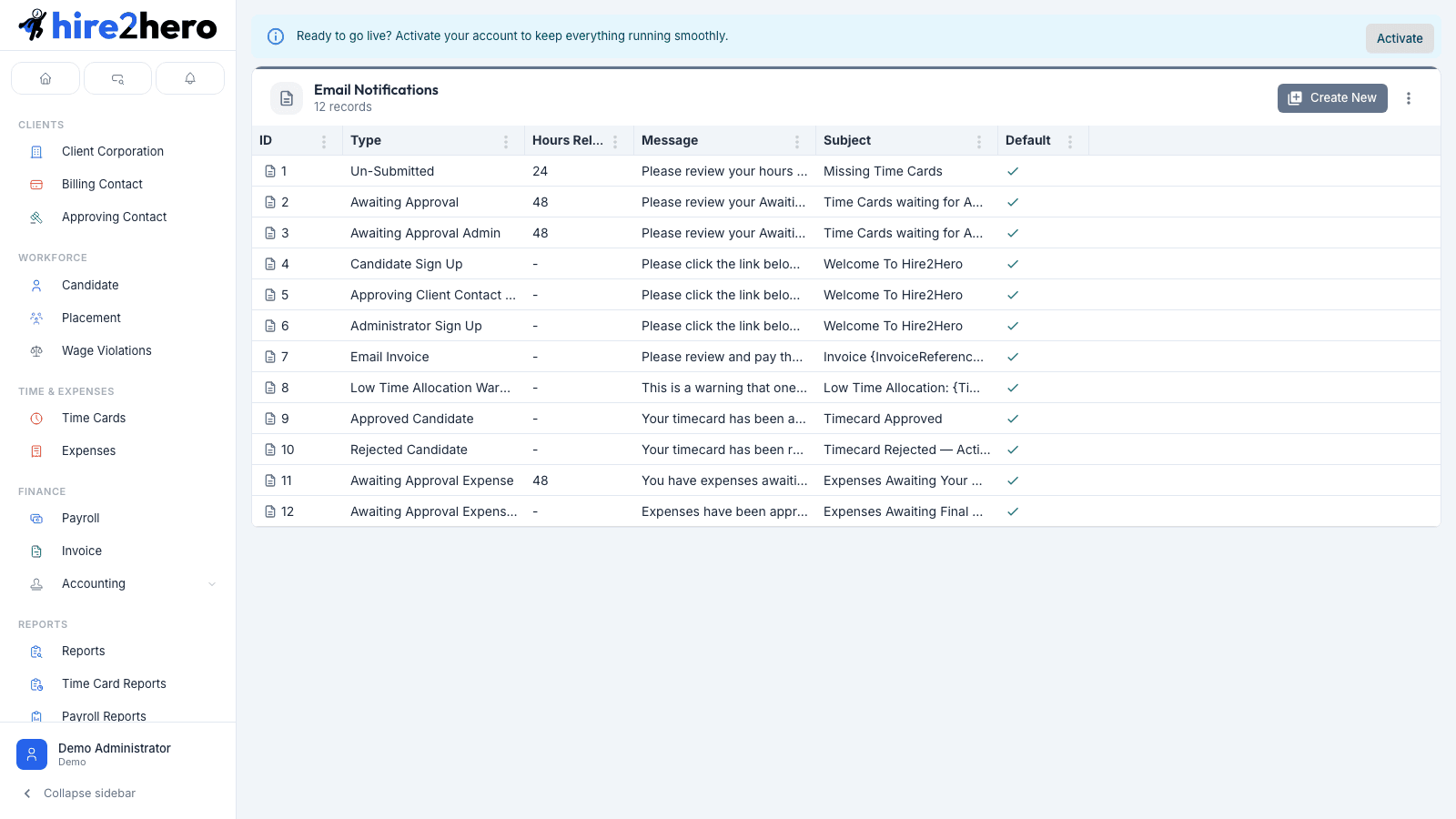
In the sidebar, open Settings and choose Email Notification. The list shows every notification template configured for your agency.
Create a notification
Click + New in the toolbar.
Choose the Type from the dropdown. The type determines what event triggers the email and which dynamic data fields are available for the subject and message. Each type can only be configured once — types that already have a template are hidden from the picker.
If the type is a scheduled notification (one that fires at a set time relative to a timecard period rather than in response to an event), a Hours Relative to End of Time Card field appears. Enter a negative integer to send the email that many hours before the timecard period ends — for example, -48 sends the email 48 hours before the period closes.
Build the Subject line. Click into the subject field and type your text. To insert a dynamic value (like the candidate's name or the timecard period dates), click the field token button and select from the available options. Dynamic tokens appear inline as labeled chips.
Build the Message body the same way — type your text and insert dynamic tokens where needed. The message field supports multiple lines.
Click Preview to see a rendered version of the email using sample data. A preview drawer opens on the right showing the email as recipients will see it, with your subject displayed in the header.
When satisfied with the output, click Save.
Fields reference
| Field | Required | Notes |
|---|---|---|
| Type | Yes | Determines trigger and available dynamic fields; locked after first save |
| Hours Relative to End of Time Card | Only for scheduled types | Negative integer; e.g. -24 = 24 hours before period end |
| Subject | Yes | Supports dynamic tokens |
| Message | Yes | Supports dynamic tokens; multi-line |
Dynamic tokens
Dynamic tokens pull live data into the email at send time. The tokens available depend on the notification type — a timecard approval notification has different fields than an invoice notification. When you click into the subject or message field, the token picker shows all fields available for that type with preview labels.
Use the Preview button after inserting tokens to verify the email looks right with sample data before saving. The preview renders the full HTML email template, not just the message text.
Edit a notification
Click any notification row to open the detail panel. You can update the hours offset, subject, and message. The Type field is locked after creation — to change the type, delete the existing notification and create a new one.
Delete a notification
Open the notification and use the delete option in the form toolbar. Once deleted, Hire2Hero stops sending that type of email until a new template is created.
Related guides
Billing & Payments
How to subscribe to Hire2Hero, understand your usage and bill, change plans, manage payment details, and cancel or resume a subscription.
Reporting
How to build, customize, and export custom reports in the admin portal, plus an overview of the built-in time card, payroll, and invoice report views.