
Reviewing Timecards
How to navigate the timecard list, understand statuses, and inspect submitted hours before taking action.
Timecards flow through Hire2Hero in a fixed sequence: a candidate submits hours, they route through any client approvers configured on the placement, and then land in your queue for final review before invoicing and payroll. This article covers finding timecards, reading their status, and inspecting the submitted hours.
Ready to take action? See Approving & Rejecting Timecards for the approve, reject, and bulk-approve steps.
Navigate to timecards
From the dashboard, click the Admin Review Time Cards KPI tile to go directly to timecards waiting for your action. Or in the sidebar choose Time & Expenses → Time Cards to see all timecards.
You'll see the full list of timecards for the current period.
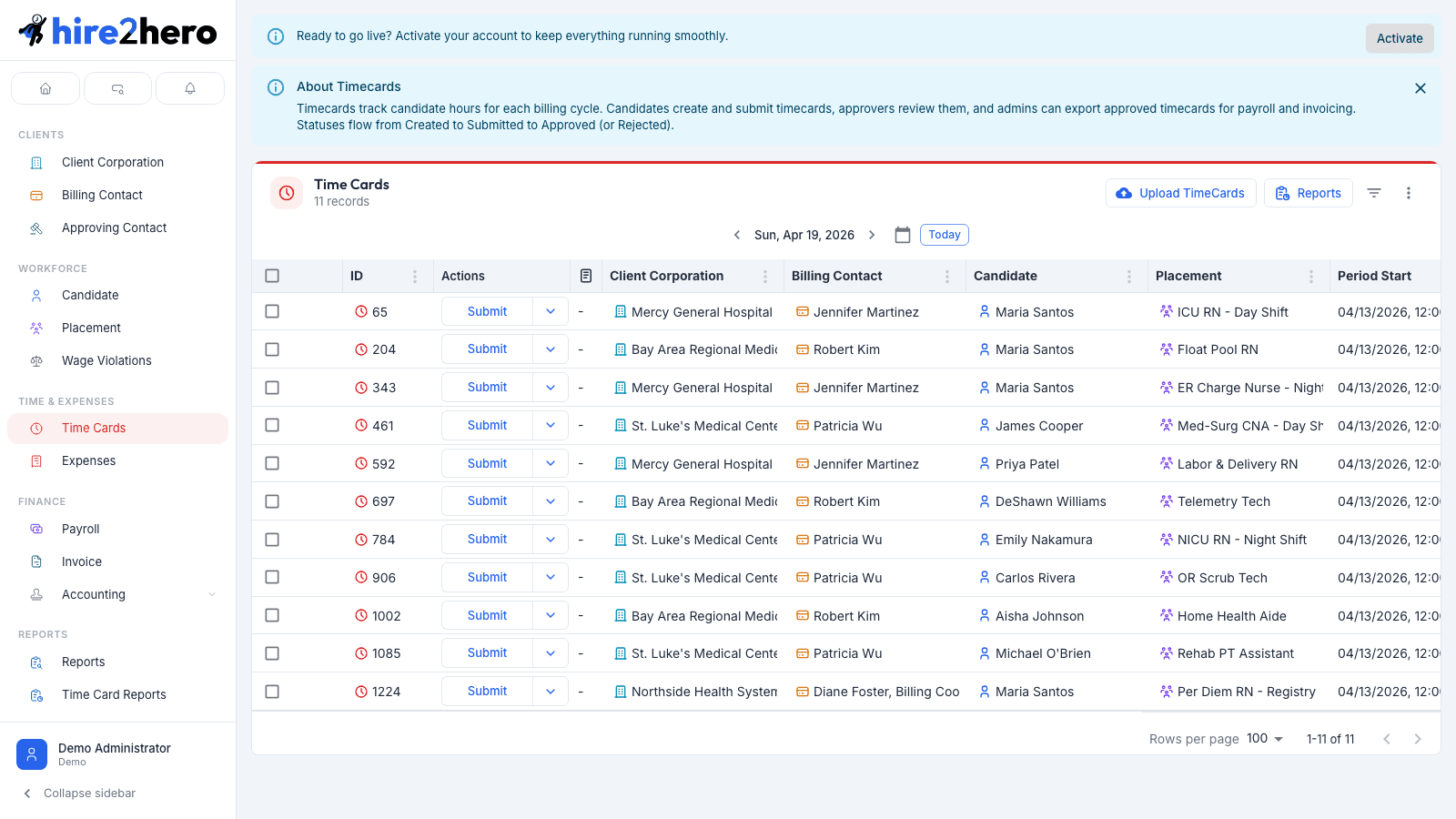
Use the date range picker at the top to view timecards for past or upcoming periods.
Understand timecard statuses
Each timecard has a Status that tells you where it is in the approval workflow.
| Status | What it means |
|---|---|
| Draft | The candidate started entering hours but hasn't submitted yet. |
| Pending Approval | Submitted with billable hours; waiting for client approver(s) to review. |
| Partially Approved | Some — but not all — required approvers have signed off. |
| Pending Admin Approval | Client approvals are complete, or the timecard contains only non-billable hours (e.g. PTO); waiting for your sign-off. |
| Approved | Fully approved. Hours are locked and flow into invoicing and payroll. |
| Rejected | Returned to the candidate with a reason. The candidate can edit and resubmit. |
Timecards with only non-billable hours (such as PTO or internal training) skip the client approver step entirely and arrive directly in Pending Admin Approval. Admin review ensures non-billable time is intentional before it affects payroll.
Read the columns
| Column | What it tells you |
|---|---|
| ID | Internal timecard identifier — useful when filing support tickets. |
| Actions | Quick actions available for this card's current state. |
| Client Corporation | Which client the placement is for. |
| Billing Contact | The billing contact who'll receive the invoice for this work. |
| Candidate | The person who worked the hours. |
| Placement | Which placement these hours roll up to. |
| Period Start | The first day of the timecard period. |
Open the timecard detail
Click any row to open the full timecard detail view. You'll see:
- Hours by day and block type — each entry shows a date, block type (Regular, PTO, Holiday, etc.), and the hours logged. Non-billable block types appear in a distinct style.
- Totals — regular hours, overtime hours, and double-time hours calculated at the bottom.
- Approval progress — which approvers have signed off and who is still pending.
- Attachments — any supporting documents uploaded by the candidate.
Approval progress indicator
The Approval Progress section shows the multi-approver state at a glance:
- A summary like 2 / 3 approvals received shows how many required approvers have signed off.
- Approved entries show the approver's name and timestamp.
- Pending approvers are listed by name.
The number of required approvers and the order they must approve in is configured on the placement. See Managing Placements for approval strategy details.
View attachments
If the candidate uploaded supporting documents (such as a signed paper timesheet):
View the audit trail
Every change to a timecard is logged — who submitted it, who approved or rejected it, and when.
Use the audit trail to resolve disputes. If a candidate claims they submitted on a certain date, or an approver disputes having approved, the audit trail has the authoritative record.
What to check before approving
Before acting on a timecard, look for:
- Block type mismatches — hours coded to the wrong type (e.g. regular hours coded as overtime, or billable work coded as non-billable).
- Obvious entry errors — a shift logged as 25 hours, or a day that doesn't match the placement's schedule.
- Unexpected days — hours on weekends or holidays when none are expected.
- Missing hours — the period looks shorter than expected without a corresponding PTO entry.
Timecard types
Different timecards behave differently in the review queue. See the dedicated articles for each type:
- Standard Timecards — billable hours with hours-entry or clock-in/out, goes through client approvers before reaching you.
- PTO & Non-Billable Timecards — non-billable hours that skip client approvers and land directly in your queue.
- Supplemental Timecards — additional hours added after an original timecard has already been approved.
Related guides
Rates & Schedule Differentials
How pay and bill rates are configured on placements, and how to use Schedule Differentials to add shift premiums for nights, weekends, and other time windows.
Approving & Rejecting Timecards
How to approve, bulk-approve, and reject timecards as an administrator, and what happens to the timecard after each action.