
Managing Clients
How to view, create, and configure client corporations — the companies you staff for — including billing settings, time rounding, and time allocation.
Client corporations are the companies you staff for. A client record holds billing preferences, time-tracking settings, and any time-allocation budgets for the work you do for them. Every placement belongs to a client.
Client Corporation create and edit require the Write Client Corporation role. Without it, the form opens read-only.
Browse clients
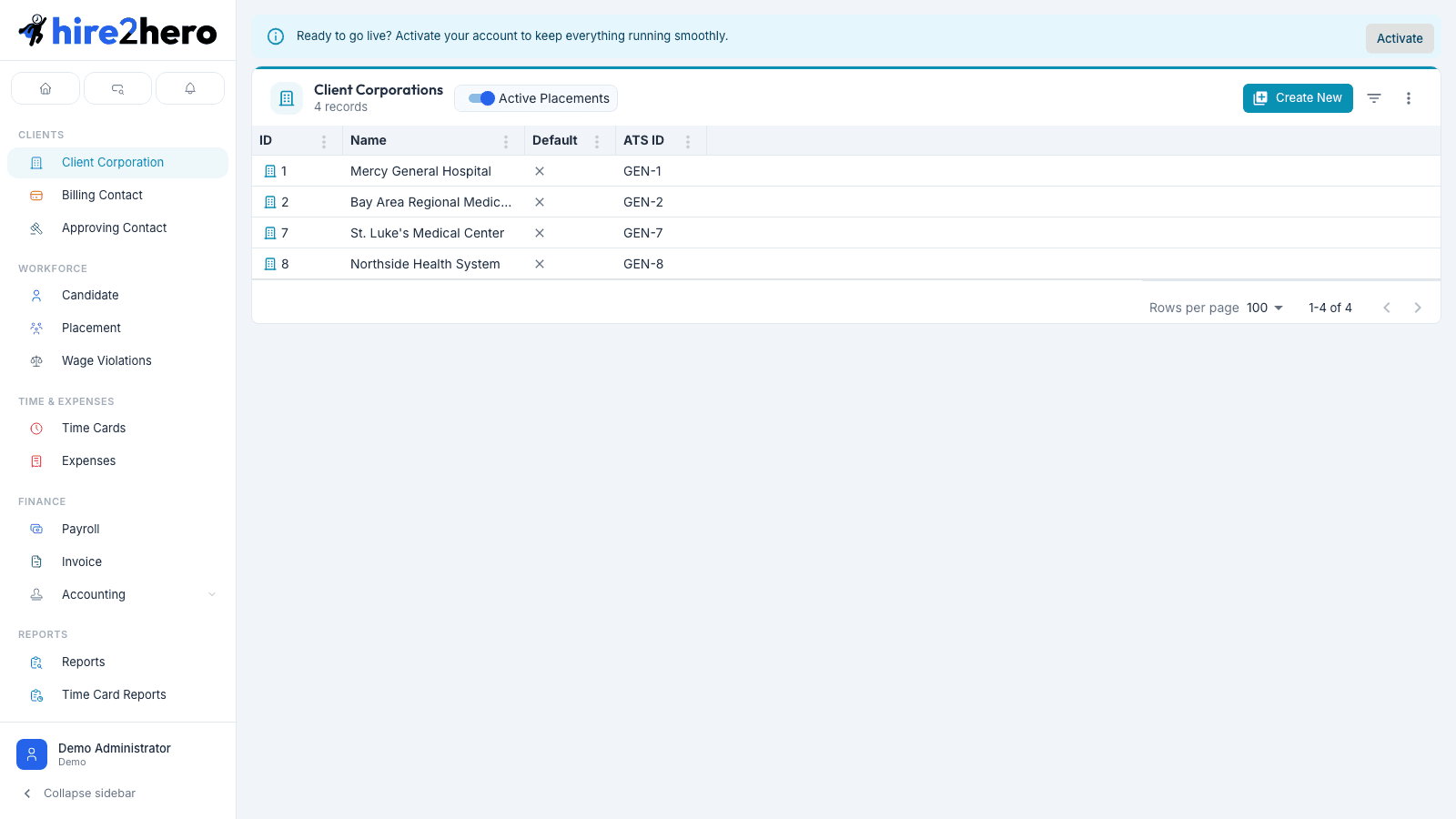
Navigate to Clients → Client Corporation in the sidebar. By default the list filters to clients with at least one active placement. Toggle the Active Placements filter in the toolbar to see all clients.
Create a client
Click + New in the Client Corporations toolbar.
In Basic Information, enter the client's Name (required — this is what appears on invoices and in the placement list). Optionally set an ATS ID if the client already exists in your ATS.
In Billing Settings:
- Payroll Company Code — the code used in payroll exports to identify this client's work. Leave blank if not applicable to your payroll setup.
- Invoice Per — pick Placement (one invoice per placement per period) or Billing Client Contact (one invoice per billing contact, aggregating across all their placements).
In Additional Settings, optionally toggle Track Location and pick a default Schedule for placements at this client. Both are optional.
In Time Rounding, optionally set a rounding interval and direction — this becomes the default for all placements at this client.
Click Save. After saving, a second tab — Time Allocation — becomes available for configuring budget pools.
The Invoice Per setting is the most consequential billing decision for a client. "Per Billing Client Contact" is the right choice when a single contact manages many placements and expects a consolidated invoice. "Per Placement" works better when each placement has its own approver and billing lifecycle.
Billing contacts are not configured on the client. They're a separate record under Clients, attached to a placement when the placement is created. See Managing placements for how billing contacts roll up.
Edit a client
Click any row in the clients list to open the detail panel. The panel has two tabs for existing clients: Edit and Time Allocation.
Edit tab — form sections reference
| Section | Fields | Notes |
|---|---|---|
| Basic Information | Name, ATS ID | Both editable with write permission; ATS ID is how the client is correlated with incoming ATS syncs |
| Billing Settings | Payroll Company Code, Invoice Per (Placement / Billing Client Contact) | Invoice Per affects the shape of every invoice generated for this client |
| Additional Settings | Track Location, Schedule | Track Location captures device GPS on timecard entries — see below |
| Time Rounding | Rounding interval (None, 5, 6, 10, 15 min) and direction (Up, Down, Nearest) | Applied to all placements for this client unless overridden on the placement |
Track Location stores the candidate's device GPS (latitude/longitude) on each timecard block as they clock in. The captured coordinates are visible on the timecard detail view and are used for geographic verification of reported hours. Leave it off unless your engagement requires location-verified timekeeping.
Time Allocation tab
The Time Allocation tab appears for existing clients (not new ones). It manages named budget pools for work at this client — each allocation caps how much time (or money) can be logged against a purchase order or funding line before warnings fire.
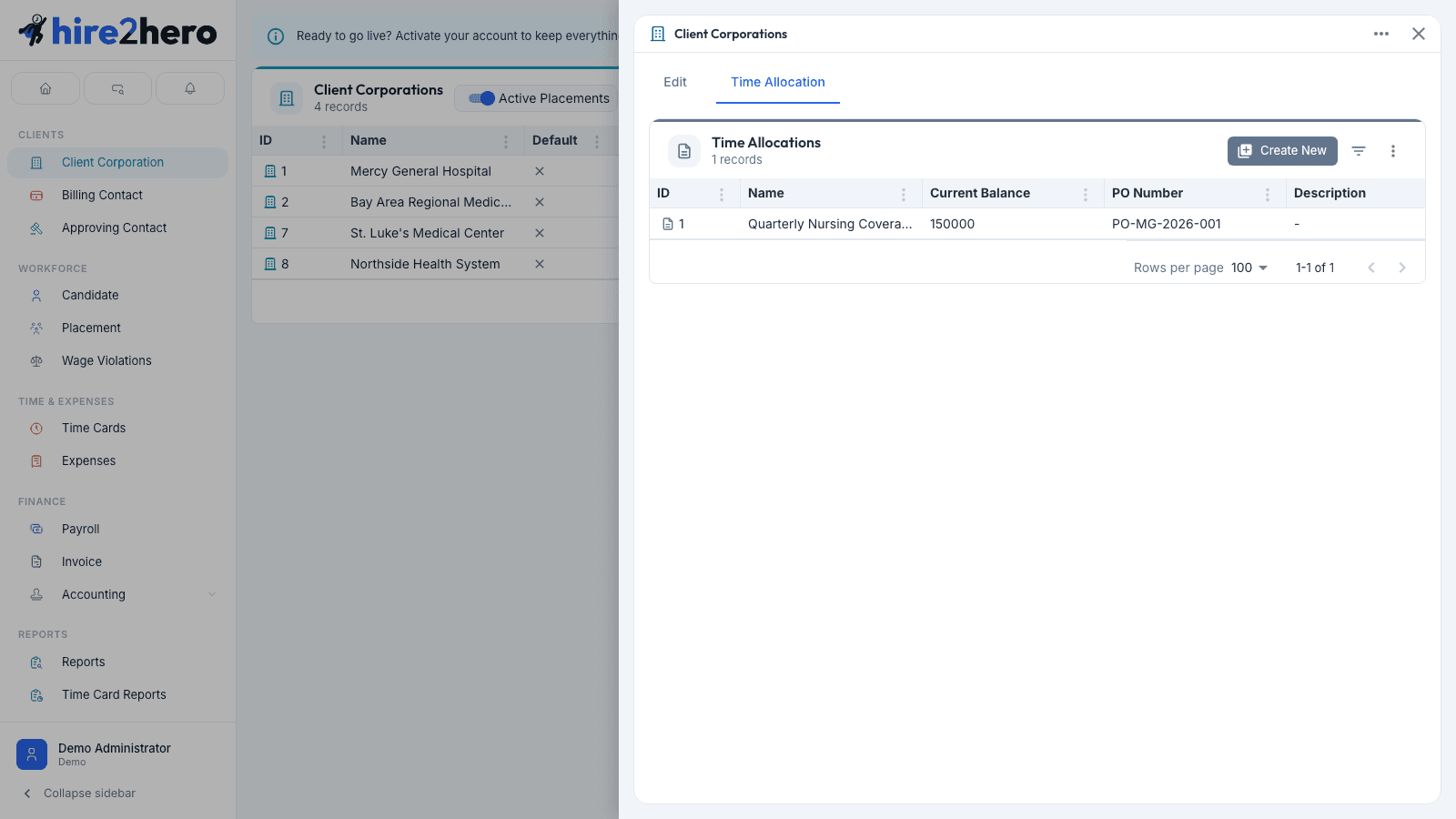
Each allocation has these fields:
| Field | Required | Notes |
|---|---|---|
| Name | Yes | How the pool appears in pickers on timecard blocks |
| Maximum Amount | Yes | Budget ceiling for the pool |
| PO Number | Yes | Reference tied to the client's purchase order |
| Start Date | Yes | When the pool becomes active |
| End Date | No | When the pool closes; leave blank for open-ended |
| Low Amount Warning | No | Currency threshold at which Hire2Hero warns as the pool runs low |
| Low Percentage Warning | No | Percentage-of-budget threshold at which Hire2Hero warns |
| Auto-Renewal | No | Whether the pool auto-renews at the end date |
Allocations are assigned to timecard blocks at entry time, but the pool is not drawn down as hours are logged — each pool's Current Balance (shown in the tab's grid) decreases when an invoice containing those blocks is finalized (moved out of Draft), and is credited back if the invoice returns to Draft. Warnings fire when balances cross the thresholds above.
Time allocation is optional. Skip this tab if your work for the client isn't tied to a PO or funded line item.
Time rounding
If you configure a rounding interval on a client, it applies to all timecards submitted under that client's placements — unless a specific placement overrides the rounding settings at the placement level. Placement-level rounding takes precedence over client-level rounding.
Available intervals: None, 5 minutes, 6 minutes, 10 minutes, 15 minutes.
Available directions: Nearest, Round up, Round down.
Setting a default client corporation, billing contact, or approving contact
You can designate one record as the default for client corporations, billing client contacts, and approving client contacts independently. The default is used as a template when creating new records of that type — its settings are pre-filled on the new record form. A star icon appears next to the current default in each entity list.
See Setting default entities for full details on how defaults work across all entity types.